
The file manager your Mac was missing
Workspaces of side-by-side panes, previews for nearly everything, a keyboard-first command palette, and optional AI that only runs with your own key.
One-time 15 USD 3 Macs per licence 14-day free trial No account macOS 14 Sonoma or later Apple silicon and Intel
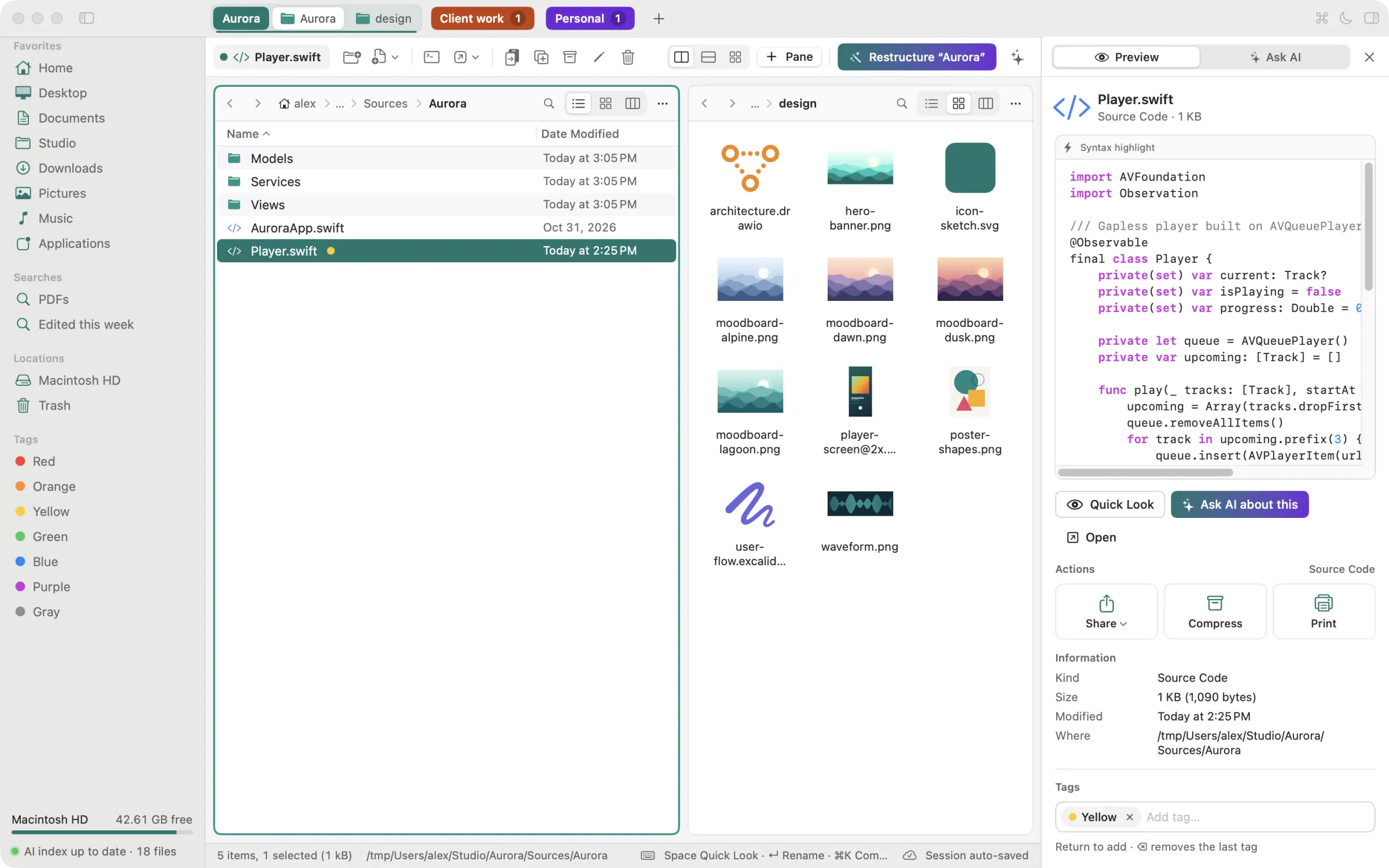
Everything in one window
Lumina is a native SwiftUI and AppKit app. It opens your folders side by side, remembers how you left them, and previews files without launching another app.
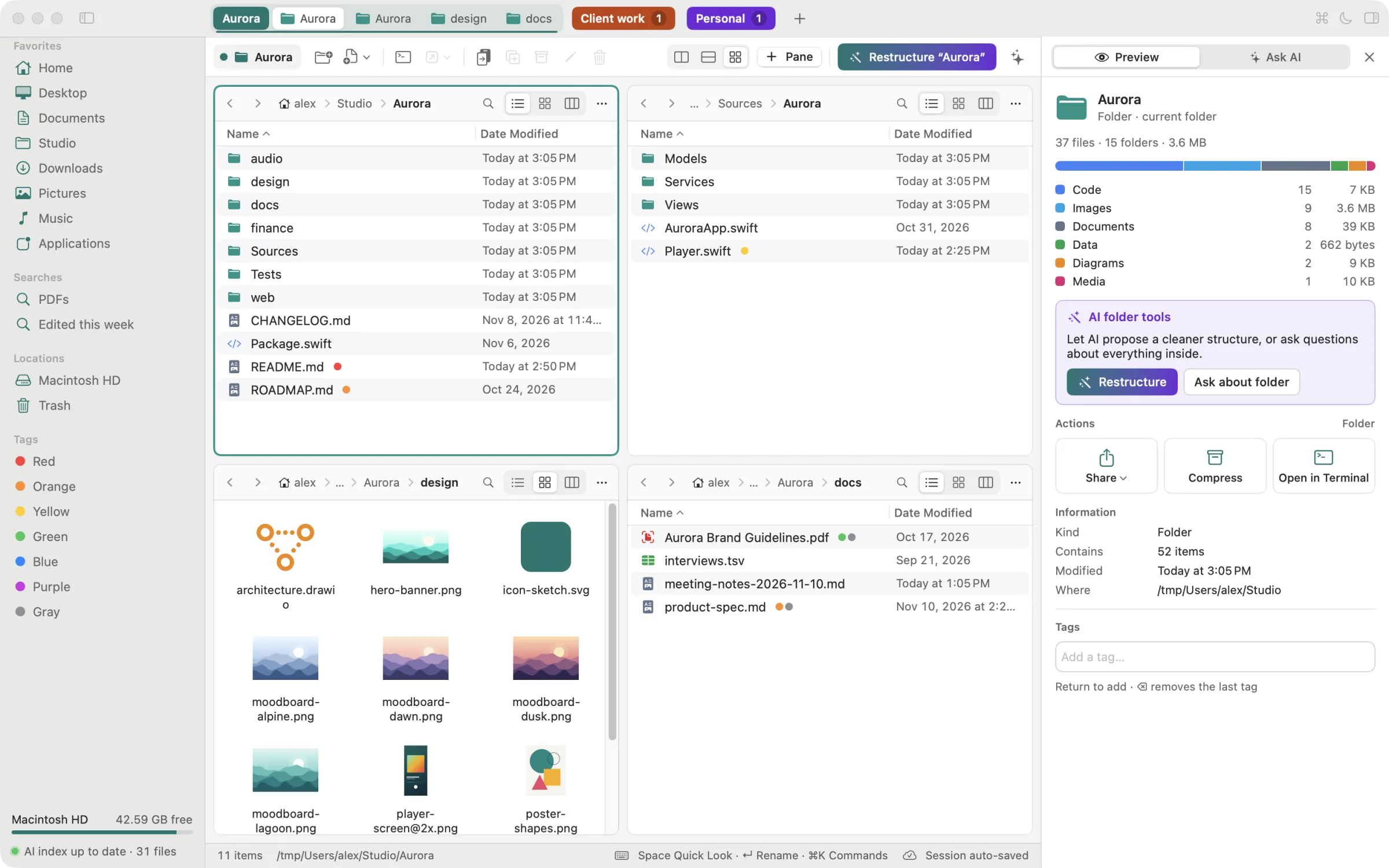
Workspaces of panes
Group the folders of a project into a workspace, then switch between workspaces like browser tabs. Each workspace holds up to eight panes in columns, rows or a grid.
- Every workspace, pane, path and selection comes back on the next launch.
- Drag dividers to resize; double-click one to even out the panes beside it.
- A folder summary shows file kinds and sizes at a glance.
List, Icons and Columns
Pick the view per pane with ⌃1 ⌃2 ⌃3. The List view has resizable, sortable columns; Icons shows real thumbnails; Columns walks a path the way you expect.
- Back, forward and enclosing folder per pane, plus an editable path bar.
- Copy, cut and paste files, with progress and Cancel for long jobs.
- Undo moves, renames and Trash with ⌘Z.

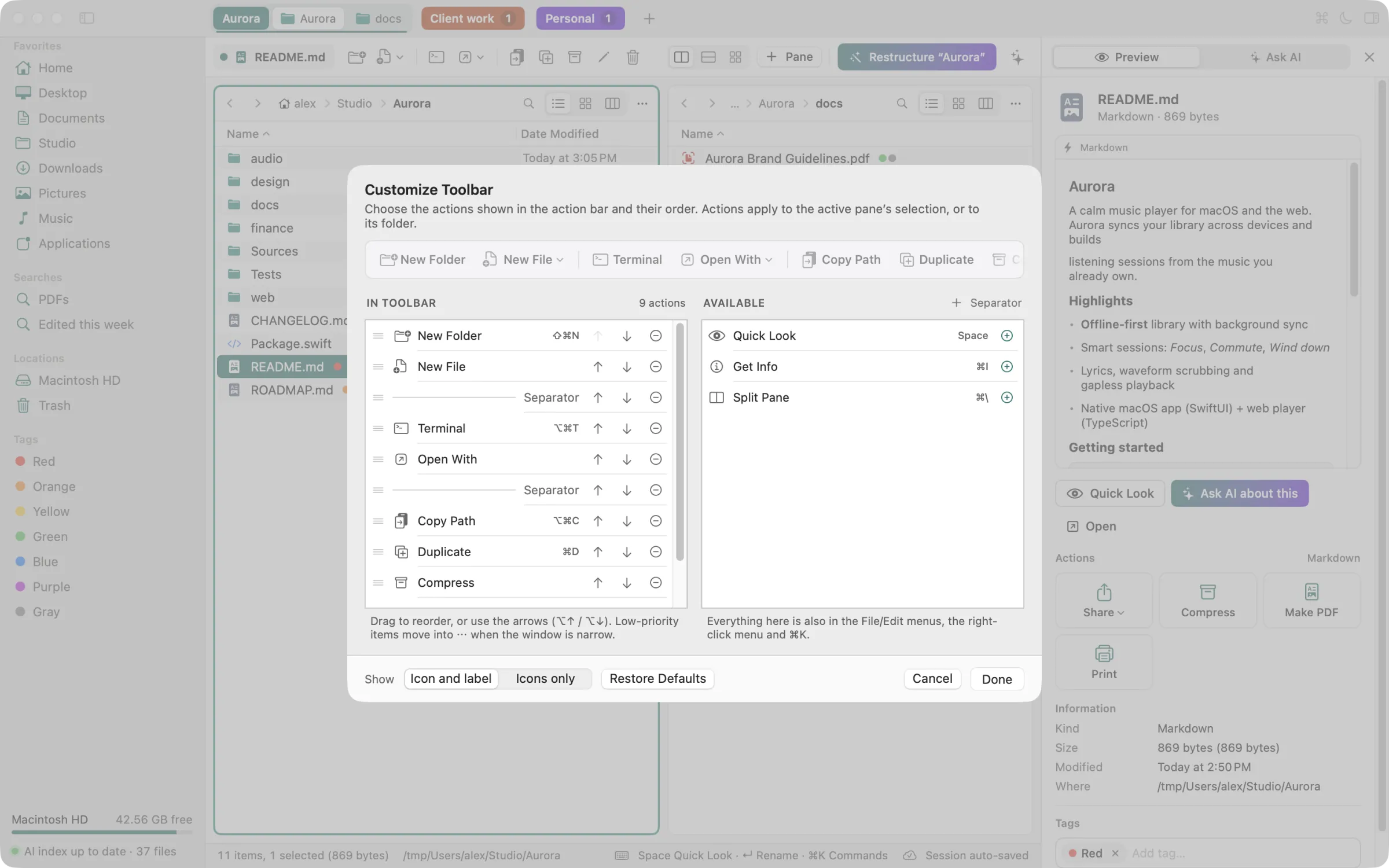
An action bar you can shape
New Folder, New File, Terminal, Open With, Copy Path, Duplicate, Compress, Rename and Trash sit one click away. Choose the actions and their order in Customize Toolbar.
- Open in Terminal works with Terminal, iTerm2, Ghostty, Warp, WezTerm, kitty, Alacritty, Hyper and Tabby.
- Batch rename, compress to zip, and extract zip, tar, gz, bz2 and xz archives.
- Convert, resize or combine images and make PDFs from the inspector.
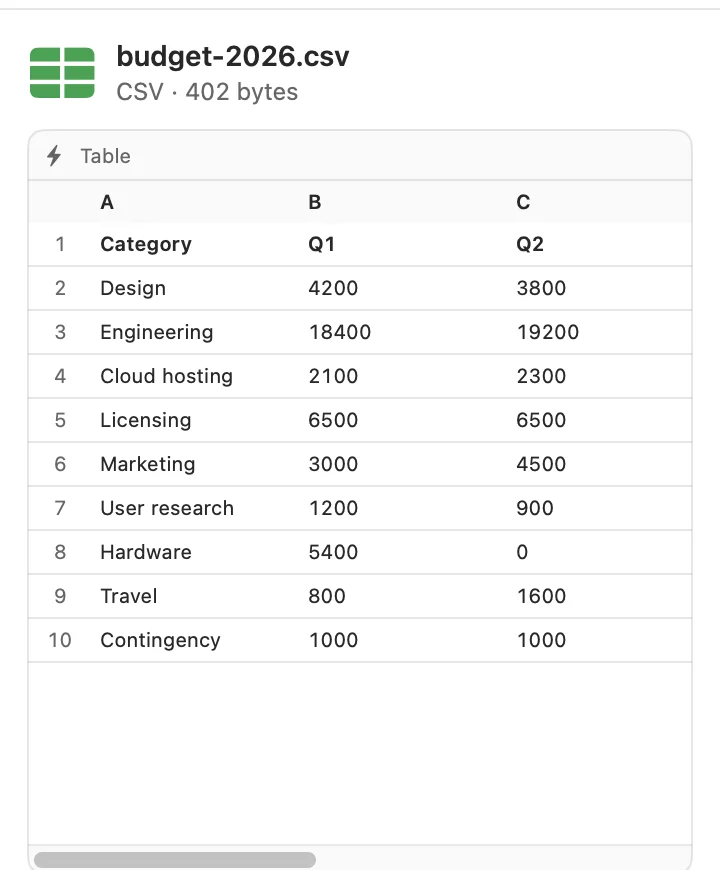
Previews for nearly everything
Select a file and the inspector renders it on the spot — natively, offline, with no extra app. Press Space for a large Quick Look.


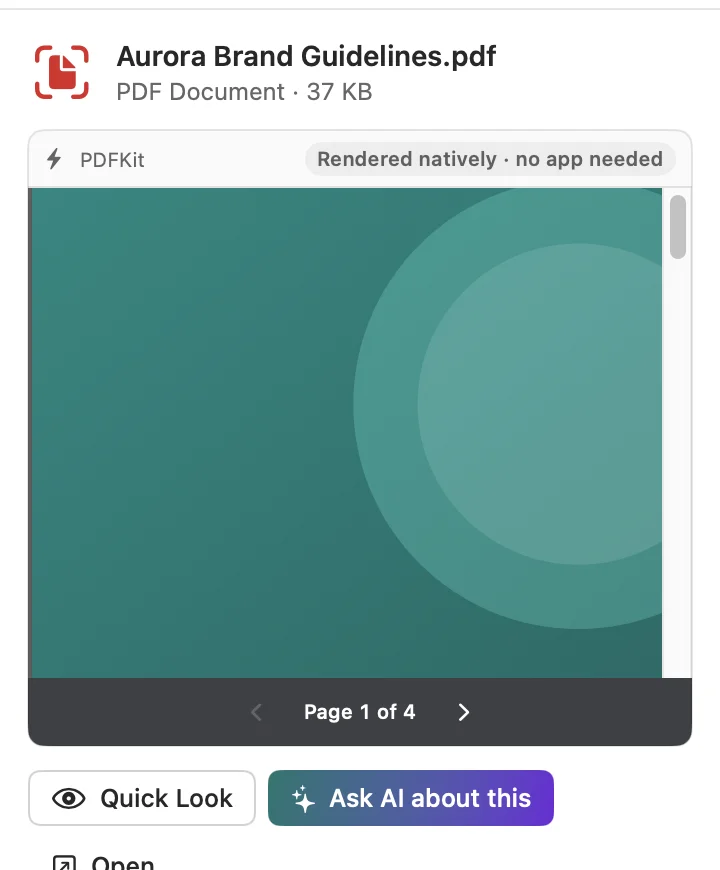
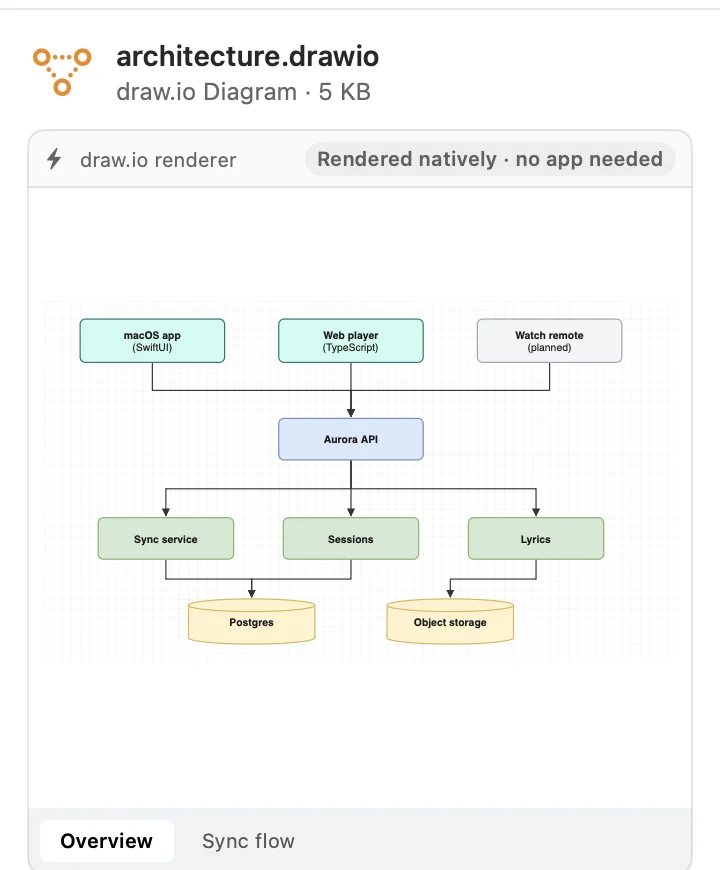
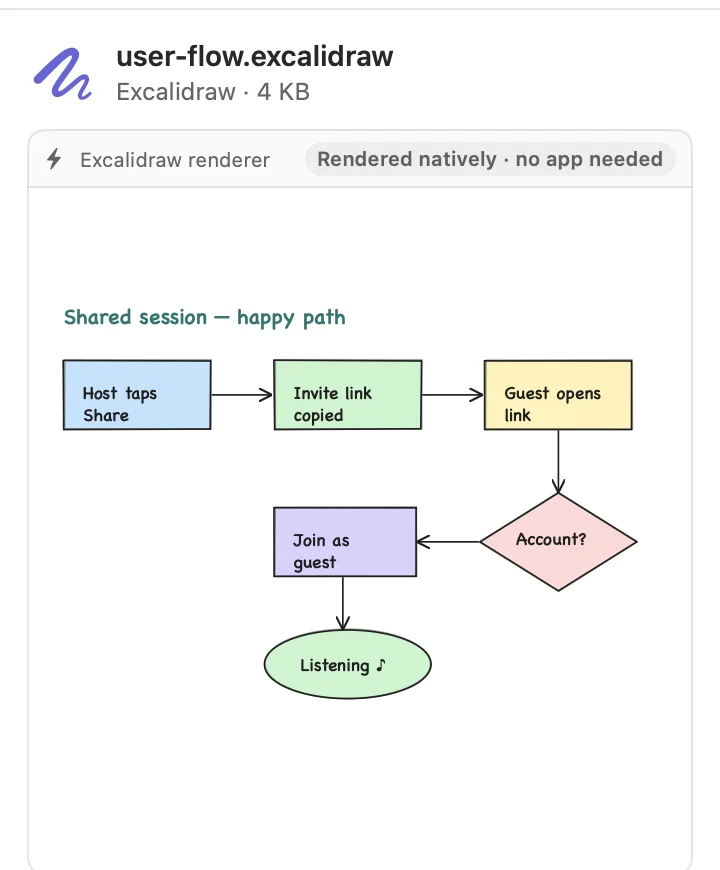
Images, and much more
Images show their pixel size and can be converted, resized or turned into a PDF. Lumina also previews Office files, video, audio, zip archives (without extracting) and anything Quick Look can show.
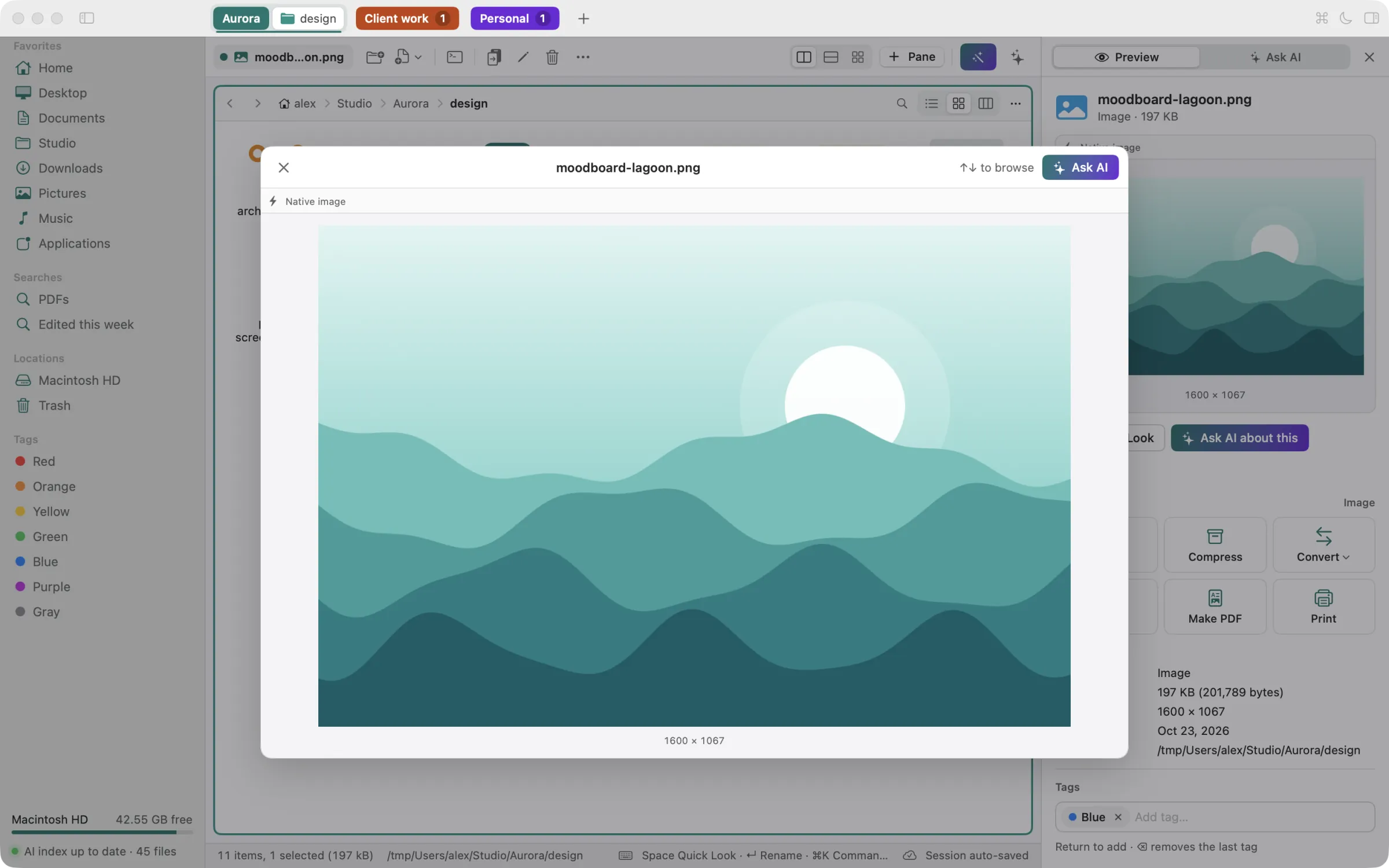
Act on files right from the inspector
The inspector's Actions grid offers what fits the selection. Converting, resizing, compressing or making a PDF writes a new file next to the original, so the original stays as it is.

Every action, by file kind
- Every file
- Share, Compress
- Images
- Convert, Resize (presets or custom), Make PDF, Print
- PDFs
- Print, Export as Images
- Documents, Markdown, text
- Make PDF, Print
- Source code
- Video
- Convert, Extract Audio
- Audio
- Convert
- Folders
- Open in Terminal
- Several images or documents
- Combine into PDF
Make it yours
Keep Lumina Teal, follow your macOS accent colour, or pick any colour you like. It runs through selections, the active pane, folder icons and the action icons. Light and dark follow macOS, or choose one in Settings.

- Nine preset colours or any colour from the picker; Lumina adjusts the shade so text on it stays readable.
- Folder icons take the highlight colour, or stay classic macOS blue.
- Each workspace tab has its own colour, so projects are easy to tell apart.
Go anywhere without the mouse
Every command lives in the menu bar, most with a shortcut. Two palettes get you the rest of the way.
Command palette ⌘K
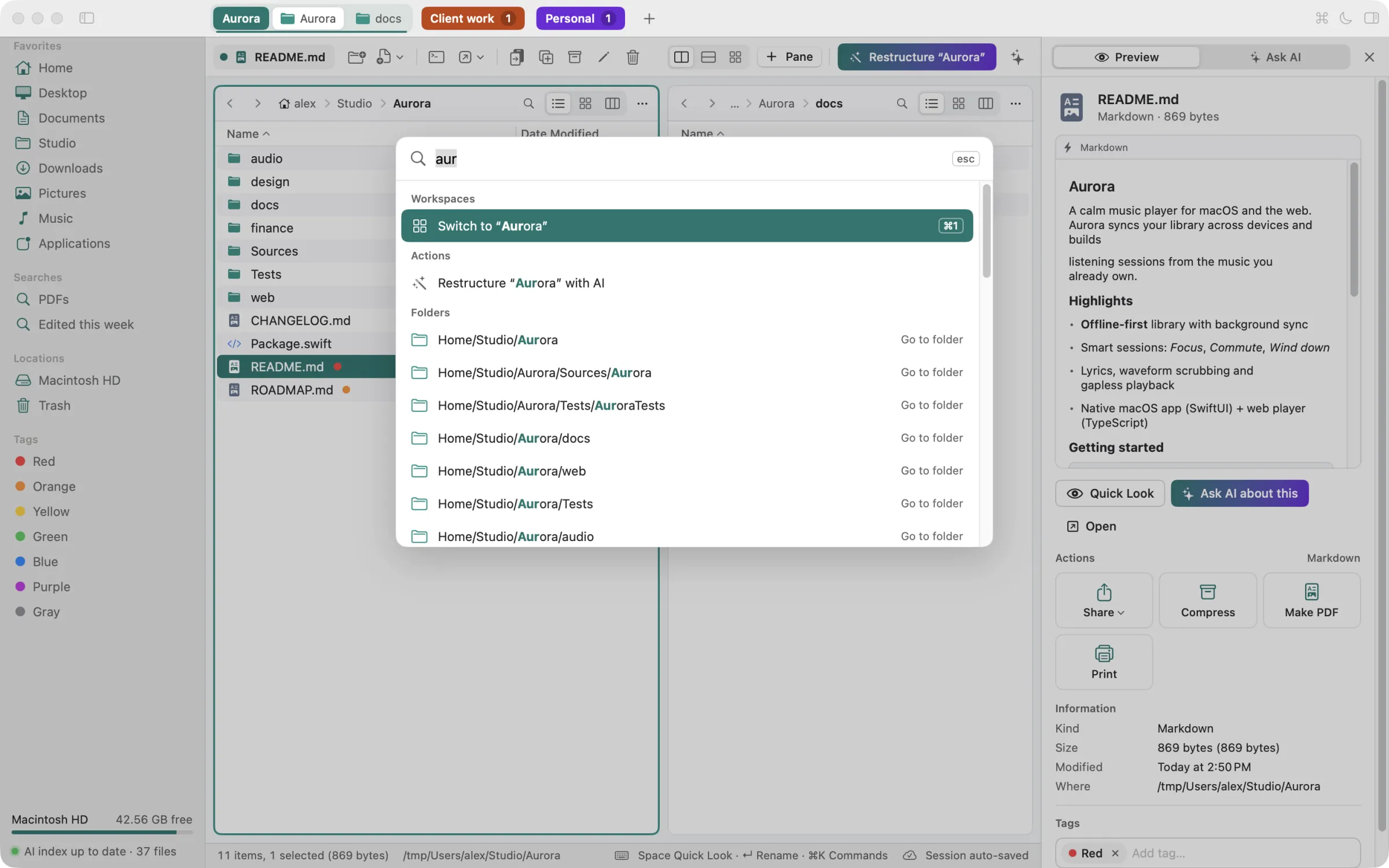
Fuzzy search across workspaces, actions, folders and files, ranked by what you use most. Pick a file and Lumina opens its folder and selects it.
Go to ⇧⌘G
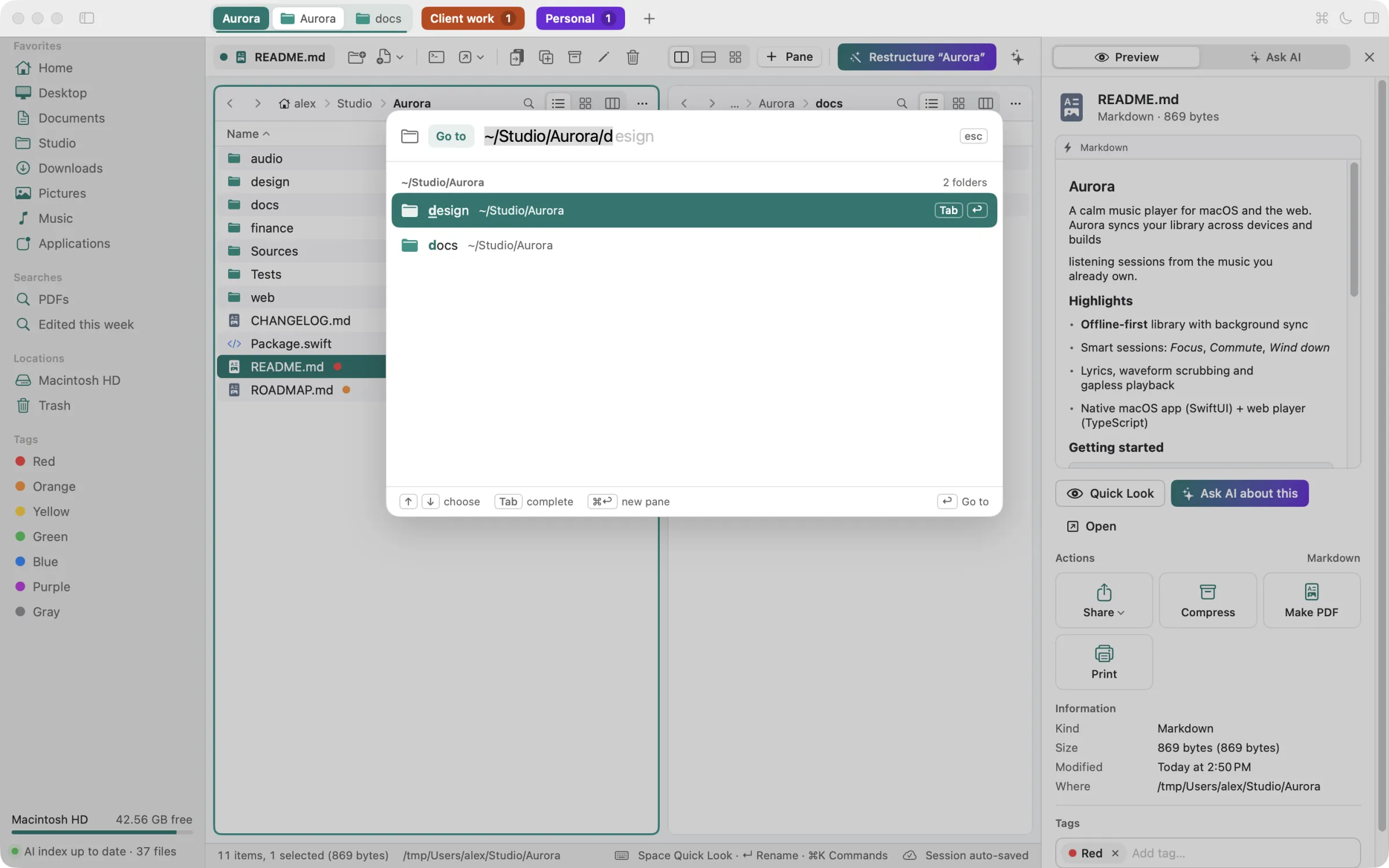
Type a path with ghost completion and Tab, see recent and suggested folders, and press ⌘↩ to open the result in a new pane.
| ⌘K | Command palette |
|---|---|
| ⇧⌘G | Go to folder |
| ⌘\ | Split: add a pane |
| ⌘1 … ⌘9 | Switch workspace |
| ⌥Tab | Next pane |
| Space | Quick Look |
| ⌥⌘C | Copy path |
| ⌥⌘T | Open in Terminal |
| ⌘J | Ask AI |
AI with your own key — or none at all
Lumina has no AI server and no account. Connect your own Anthropic or OpenAI-compatible provider (a local model on localhost works too), or leave AI off. Browsing, previews and search never need it.
Your key, your provider
The key is stored in your macOS Keychain and sent only to the host you enter. You pay your provider directly.
You choose what is shared
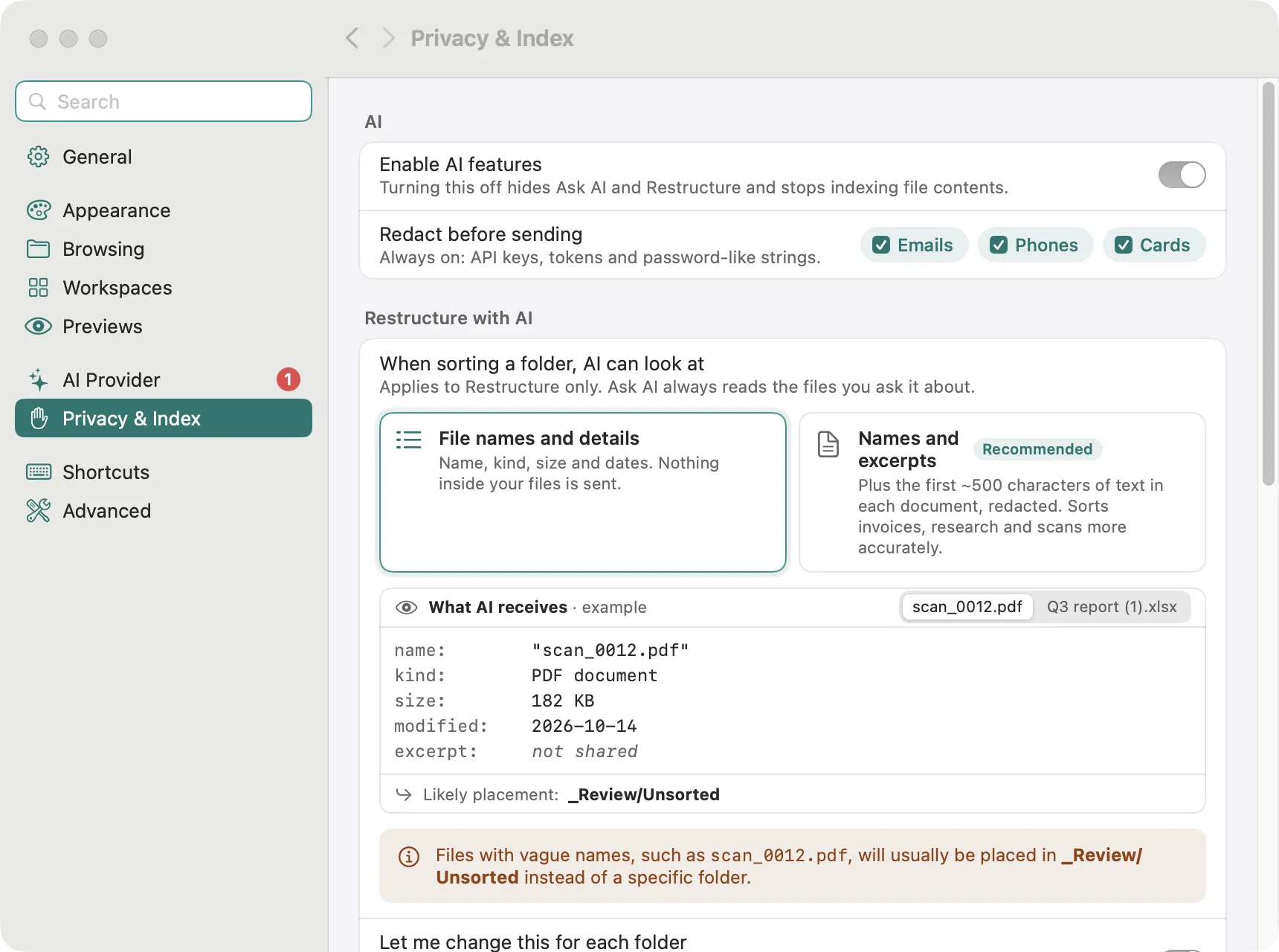
Restructure can send file names only, or names plus short redacted excerpts. Emails, phone numbers, card numbers and API keys are redacted before sending.
Nothing changes without you
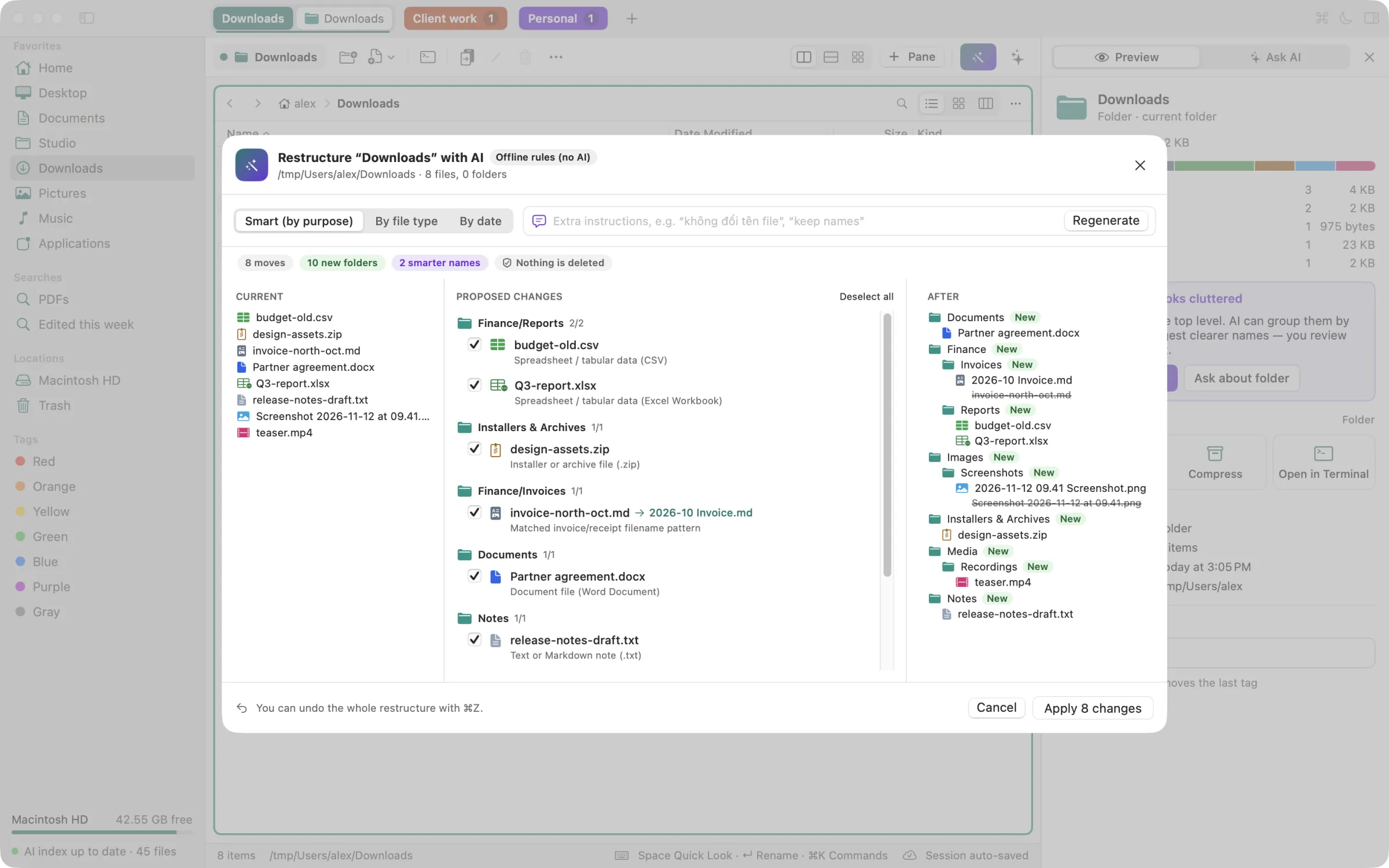
Restructure shows a before/after plan. Untick what you don't want, apply, and undo the whole thing with ⌘Z. Nothing is deleted.
Restructure a messy folder
Lumina proposes a cleaner structure for a folder — with your AI provider, or with deterministic offline rules that send nothing anywhere. Sort by purpose, file type or date.
Ask AI about a file or folder
Press ⌘J to ask about the selection: summaries, key takeaways, action checklists. Lumina's on-device index helps it find the right files.
Settings that explain themselves
Privacy & Index shows an example of exactly what the AI receives. Turn AI off and Restructure disappears, Ask AI is switched off, and file contents are no longer indexed for AI.
The details you'd expect from a Mac app
Finder tags
See and edit tags in the list and inspector, and browse by tag from the sidebar. Tags are the same ones Finder uses.
Search with operators
Filter a pane with kind: ext: size: date: tag: and keep useful searches in the sidebar.
Cloud-aware
iCloud Drive and cloud-storage folders show which files are only in the cloud. Selecting never downloads; a Download button does, when you ask.
Fast and local
Folders load off the main thread, and the search index lives on your Mac. It pauses while you work and in Low Power Mode.
Five languages
English, Deutsch, Français, 日本語 and Tiếng Việt, with folder names, dates and numbers in your locale.
Light, dark and your colour
Follows the system appearance. Keep Lumina Teal, follow the macOS accent, or pick your own — contrast is adjusted for you.
One price. Yours to keep.
No subscription and no account. Try everything free for 14 days.
Lumina
15 USD
One-time purchase
- Use on up to 3 Macs
- 14-day free trial, every feature included
- Free updates for all 1.x versions
- After the trial Lumina keeps working; you'll just see a reminder
- AI with your own key — no AI subscription from us
Sold through our resellers Paddle and Gumroad, who handle payment, VAT, sales tax and invoices. 14-day refund policy.
Questions and answers
How does the free trial work?
Download Lumina and use every feature for 14 days. No account, no card and no sign-up. The trial is tracked on your Mac only. Downloads open soon.
What happens when the trial ends?
Lumina keeps working; you'll just see a reminder to buy a licence.
How many Macs can I use it on?
Up to 3. To move a licence, deactivate the old Mac in Settings › License, or use Manage Devices… there to get a one-time device-list link by email.
Does Lumina phone home?
Rarely, and never with your files. When you enter a licence, Lumina sends the licence key, a hashed Mac identifier, the Mac's name and the app version to activate it; after that the licence is checked offline. Update checks send the app and macOS version. Crash reports are sent only if you agree. AI calls go only to your own provider, with your own key, and only when you use AI. Details in the privacy policy.
Do I need an AI subscription?
No. AI is optional. If you want it, enter an API key for an Anthropic or OpenAI-compatible provider in Settings › AI Provider — including a local model server on localhost. Without a key you still get browsing, previews, search, tags and the offline Restructure rules.
Does Lumina replace Finder?
It works alongside Finder. It reads and writes the same files and Finder tags, and Show in Finder is always in the File menu and the right-click menu.
What do I need to run it?
macOS 14 Sonoma or later, on a Mac with Apple silicon or Intel.
How do I pay?
Checkout is handled by our resellers, Paddle and Gumroad, who act as merchant of record and handle payment, VAT, sales tax and invoices. Your licence key arrives by email right after payment. The store opens soon.
Can I get a refund?
Yes, within 14 days of purchase. See the refund policy.
Are updates included?
All 1.x updates are free. A future 2.0 may be a paid upgrade at a discount for existing customers.
Bring order to your files
Try Lumina free for 14 days.